
Credits are the money of ArcGIS Online. Your plan comes with a set number each year. When they run out, a lot of work stops. Staff cannot publish new layers or run paid tools until you buy more.
Most managers find out too late. The alert email lands, and nobody can say where the credits went. Since the June 2026 update, ArcGIS Online gives you a much better place to look. This post shows you how to read it in 30 minutes a month.
What changed in June 2026?
Esri added a new status dashboard in February 2026 as a beta feature. With the June 2026 update, it became the default for every organization. You can still open the old one with the "Launch legacy dashboard" link.
The new dashboard splits credit use into three groups:
- Storage. Credits charged for keeping data in ArcGIS Online, like hosted layers, files and imagery.
- Transactions. Credits charged per job, like geocoding (turning addresses into map points) or spatial analysis.
- Sessions. Credits charged by the hour while a compute tool runs, like a scheduled notebook (a script that runs on a timer).
It also lists the top 100 items and the top 100 members for each group. You can download each list as a CSV file and open it in Excel. Data starts on October 1, 2025, and it refreshes once a day.
Where do most credits really go?
For many offices, the answer is storage. In Esri's sample organization, the dashboard showed 441.71 credits used in 30 days. Storage was 85.9% of that. Feature storage alone was 99.5% of the storage credits.
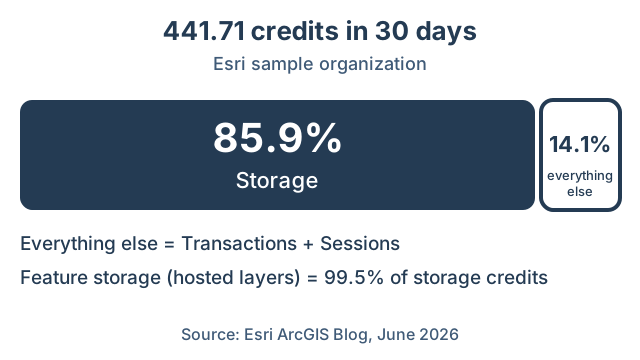
That is one sample, not every office. But it shows the pattern to look for. Storage is charged every hour, every day, even for data nobody opens. A geocoding job costs credits once. A forgotten layer costs credits every month.
Why do hosted layers cost so much more than files?
The rates are very different. Here are the storage rates from Esri's help pages:
| What you store | Credits per month |
|---|---|
| Hosted feature layers (your map data) | 2.4 per 10 MB |
| Files, web maps, attachments, vector tiles | 1.2 per 1 GB |
| Tiled imagery | 1.2 per 1 GB |
| Files in a Notebooks workspace | 12 per 1 GB, per user |
Do the math on the first two rows. A gigabyte of feature data costs 240 credits a month. A gigabyte of files costs 1.2. That is 200 times more for the same space.
So a large hosted layer that nobody uses is the most costly kind of waste. Two settings can make it grow over time. "Enable Sync" lets crews work offline. "Keep track of changes" logs every edit. Both keep a change log that gets bigger with each edit. You can trim that log from the layer's settings.
What should you check each month?
Set a 30-minute slot on the first workday of each month. Open Organization, then the Status dashboard tab. You need an admin account, or a role allowed to see status reports. Pick "Last 30 days" at the top.
| Minutes | Step | What to look for |
|---|---|---|
| 0-5 | Summary tab | The split between Storage, Transactions and Sessions. Did one jump since last month? |
| 5-15 | Storage tab | The top items list. Download the CSV. Mark items that have not changed in over a year. |
| 15-20 | Transactions tab | Members with sudden spikes. Hourly data covers the last 3 days. |
| 20-25 | Sessions tab | Scheduled notebooks or data pipelines that run more than they need to. |
| 25-30 | Notes | Send each owner their own rows from the CSV. Log this month's total. |
The Storage tab has a filter for items by last change date. It goes from "more than 7 days" to "more than a year." Use it to find old data fast.
Keep the monthly totals in one sheet. After three months you will see a trend. That trend is what you take to your budget meeting.
Which items should you clean up first?
Start at the top of the storage list and work down. Big and unused comes first. Ask the owner to check the item's Usage tab. In Esri's example, the layer using the most storage credits had only 5 requests in 12 months.
Good candidates to remove or shrink:
- Old copies of a layer, like "parcels_final_v2" next to "parcels_final_v3."
- Layers from a finished project that no map or app uses anymore.
- Fields and features nobody needs. Fewer fields means a smaller layer.
- Long change logs on layers with sync or edit tracking turned on.
- Photo attachments that could live somewhere cheaper.
Before you delete anything, check two things. First, make sure no shared map or app uses the layer. Second, keep a copy outside ArcGIS Online. Exporting data does not use credits. Download the export, then delete the export item too, since it counts as file storage while it sits there.
If your office keeps a lot of feature data, ask Esri about Premium Feature Data Store. It charges a fixed price instead of storage credits for features.
When should you turn on credit budgets?
Credit budgets cap how many credits a member can spend. You can set a total per person, or a limit per job. When a job would go over the cap, ArcGIS Online blocks it and shows a message.
There is a catch. Budgets only apply to transaction tools, like GeoEnrichment (adding census data to your map) and spatial analysis. They do not limit storage. So budgets will not fix the biggest leak in most offices.
Turn budgets on when your Transactions tab shows big, rare spikes from a few people. That usually means someone ran a large job by mistake. Use custom roles too, so only the staff who need paid tools can run them.
What happens if you run out?
ArcGIS Online emails your admin contacts at 75% and 100% of credits used. At 100%, the organization goes into a restricted state. People can still view and edit existing content. But nobody can create new content, publish new layers, or use paid tools.
Two dates matter here. Credits that come with your yearly plan expire at the end of the plan. Credits you buy extra expire after two years. Also, ArcGIS Online keeps usage data for two years only. Download your CSV files each month if you want a longer record.
How do we handle this at GeoLink?
We treat the credit check as routine monthly work, not a fire drill. Our GIS Managed Service is From $2,000/month and includes up to 20 hours of GIS work every month. Data quality and audit-ready records are part of it. A monthly credit review fits inside those hours.
The steps are the ones above. We pull the CSV files, flag the largest unused items, and confirm with each owner before anything is removed. Your Esri license stays on your own account. We just keep it tidy.
What should you do next?
Open your status dashboard today and look at the Summary tab. Write down one number: the share of credits that went to storage last month. If it is high, start with the top ten items on the Storage tab.
If you want a second pair of eyes, book a free 30-minute audit. We will look at where your credits go and tell you plainly what to clean up first.