

Every Friday, someone on your team opens ArcGIS Online. They count the inspections closed this week. They copy the numbers into a spreadsheet. Then they email it to the same five people. It takes an hour, and it is the same hour every week.
ArcGIS Online can do that job for you. A notebook can run on a timer, build the report, and send it. This post shows how to set one up, what it costs in credits, and what to check before early 2027.
What is an ArcGIS Notebook scheduled task?
A notebook is a page of Python code that lives inside ArcGIS Online. You run it one block at a time, and you see the results right under the code.
A task is a timer for that notebook. You pick a day and a time. When the time comes, ArcGIS Online opens a fresh copy of the notebook and runs every block, top to bottom. Nobody has to open it. You can close your browser and go home.
The notebook runs as the person who owns it. It can read the same layers that person can read. It can also add or change data, as that person could.
To schedule notebooks, a person needs a Creator or GIS Professional user type. Their role also needs the privileges to create and schedule notebooks.
What can a weekly report notebook do?
Most weekly reports follow the same three steps. They count something, sum it up, and send it.
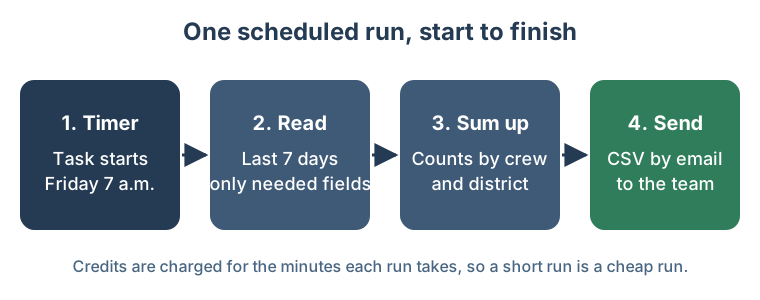
Here is what that looks like for a public works team:
- Read. Query the inspections layer for records closed in the last seven days.
- Sum up. Count them by crew, by district and by result.
- Save. Write the table as a CSV file, a plain spreadsheet file that opens in Excel.
- Send. Email the table to a list, or save it to a shared folder in ArcGIS Online.
The same pattern works for other reports. You can list layers that nobody opened in 90 days. You can flag items with no description. You can check which members have not signed in for months.
What are the limits of scheduled notebooks?
Esri sets a few hard limits. Know them before you plan ten reports.
| Rule | What it means for you |
|---|---|
| 10 active tasks per person | One person can run at most 10 timers across all their notebooks. |
| 50 active tasks per organization | The whole org shares a ceiling of 50. |
| Every 15 minutes at most | A task cannot run more often than that. |
| Owner only | You can only schedule notebooks you own. |
| Five failures in a row | The task stops after five failed runs. Someone must fix it. |
| Delete the notebook, lose the tasks | Tasks are gone for good if the notebook goes to the recycle bin. |
Two more details matter. Start times are rough, not exact. A busy system can start your task a bit late. And the schedule uses the time zone of the browser that created it. If your admin in Denver sets up a report for a team in Toronto, check the hour.
How do you set one up?
Start with a notebook that already works when you run it by hand. Then follow these steps.
- Save the notebook with a clear title. The Tasks button only shows up after you save.
- Remove anything that needs a click. A scheduled run cannot wait for a person. A step that asks you to pick a point on a map will stall it.
- Use full file paths. Write
/arcgis/home/report.csv, nothome/report.csv. - Open Tasks and click Create task. Give it a name like "Friday inspection report."
- Add parameters if you need them. A parameter is a value the task passes into the notebook, such as a date range or a mailing list. It lands in a cell at the top.
- Set the schedule. Pick Week, then Friday, then a time.
- Open the Advanced section. Set the most minutes the task may run. Turn on the workspace only if the notebook reads or saves files there.
- Create the task. Then watch the first run in the task's details. Each run shows Succeeded, Failed, Executing or Skipped.
Treat passwords with care. A parameter can carry a password into the notebook, but the task owner and your org admins can see it. Use a mail account made just for this job, with as few rights as possible.
How do you keep scheduled runs cheap?
Credits are the money of ArcGIS Online. Every scheduled notebook uses credits. The charge is based on how long each run takes. That is true even on the Standard runtime, which is free while you work in it by hand.
So the goal is simple: short runs, and not too many of them.
- Pick the Standard runtime. It has the ArcGIS API for Python, which is enough for most reports. The Advanced runtime adds ArcPy and uses more credits.
- Ask only for what you need. Query last week's records, not the whole layer. Ask for the five fields in the report, not all 60.
- Set a time limit. If a run gets stuck, the limit stops it before it burns an hour.
- Run weekly, not every 15 minutes. A report people read on Friday does not need to run 672 times a week.
- Watch the dashboard. The status dashboard has a Scheduled Notebooks view. It shows how many credits these runs used.
One more cost hides in plain sight. Files saved in a notebook workspace count as storage. Delete old CSV files, or save the report somewhere else and keep the workspace off.
Why check your notebook runtime now?
A runtime is the set of Python tools a notebook runs on. Esri retires old ones. In ArcGIS Online, each runtime is supported for about two years after it comes out.
Esri's retirement list for the November 2026 update names two runtimes. Runtime 10 goes away with the November 2026 update. Runtime 11 is on the list for the first quarter of 2027.
A scheduled notebook on an old runtime can fail without anyone noticing. Nobody opens it, so nobody sees the error. After five failures, the task stops. The report just stops arriving.
Do this check once this quarter:
- Open the Manage notebook tasks window. List every active task.
- Open each notebook and note its runtime.
- Move any notebook on Runtime 10 or 11 to the newest runtime.
- Run it once by hand. New Python versions sometimes break old code.
- Watch the next scheduled run to be sure it succeeds.
Can AI write the Python for you?
Partly. ArcGIS Online now has a Notebooks assistant, still in beta. It sits on the top ribbon of the notebook editor. It can help write Python, explain code, and help fix errors.
That is a real help for someone who is not a programmer. You can ask it for a cell that counts last week's inspections by crew. You still need to check the result. Run it by hand, and compare the numbers with what you count yourself. A report that is wrong every week is worse than no report.
How do we set up report automation at GeoLink?
We follow the same order every time. First, we sit with the person who builds the report today. We write down every number they copy, and where it comes from.
Then we build the notebook and run it by hand three times. We note how many minutes each run takes. We set the task's time limit a little above the slowest run. That keeps credit use small and easy to predict.
Next, the report goes to the team in parallel with the manual one for two weeks. If the numbers match, the manual report stops. We also add a short check at the end of the notebook. If the count looks wrong, such as zero inspections in a week, it emails a warning instead of a report.
Your notebooks stay in your own ArcGIS Online account. Our GIS Managed Service (From $2,000/month) includes up to 20 hours of GIS work every month. Building and watching a few scheduled reports fits inside those hours.
What should you do next?
Pick one report your team builds by hand every week. Write down the steps, the layers it uses, and who gets it. That list is most of the plan.
If you want a second opinion, book a free 30-minute audit. We will tell you which report to automate first, and whether a scheduled notebook is the right tool for it.